Creative studio workflow
Work from a full page built for choosing examples, adjusting aspect ratio, comparing results, and returning to earlier outputs during a longer creative session.
AI vector image generator
Generate vector-style images from text prompts for icons, logos, mascots, posters, and illustration concepts.
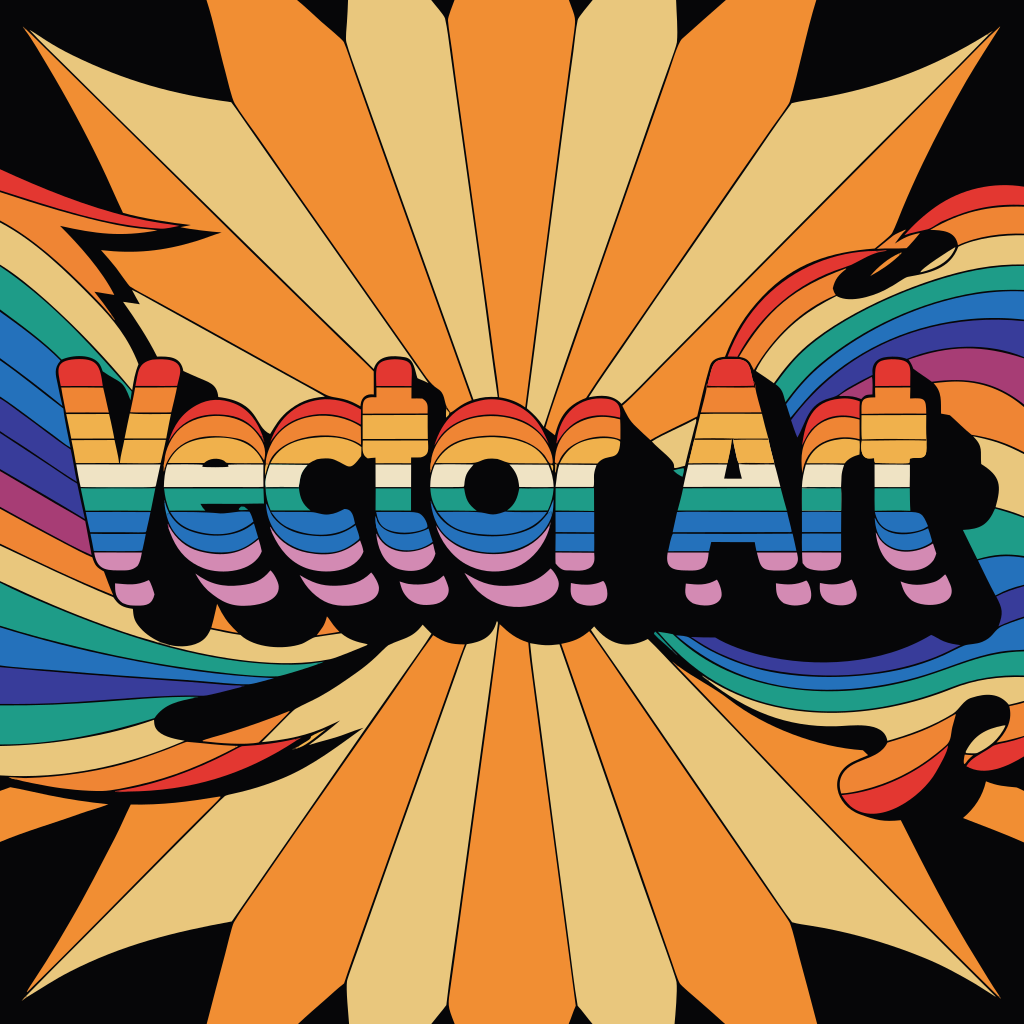
Preset
Aspect ratio
VectorArtGen turns prompts into clean vector-style artwork that can be downloaded, reused, and refined when colors, paths, or composition need more control.
AI generation uses the configured provider to process prompts. Use clear creative descriptions for the artwork and avoid including private or confidential details.
The AI Vector Generator is the broader creative studio inside VectorArtGen. Use it when you want presets, aspect ratios, saved recent creations, similar variations, and a more iterative workspace for building a family of vector-style assets rather than a single quick prompt result.
VectorArtGen keeps prompt-based generation focused on usable vector-style assets, not generic image previews. The workflow starts with a written brief, shows the generated result in context, and keeps download, editing, and related tools close enough for real design handoff.
The best generated vectors come from prompts with a clear subject, limited style direction, strong composition, and practical color constraints. If a result is too busy, simplify the prompt, reduce competing details, or ask for cleaner shapes before editing.
A practical generation workflow needs a follow-up path. After download, teams often adjust colors, simplify paths, resize the artwork for product surfaces, or create a similar variation before handing the file to design, marketing, or front-end work.
Work from a full page built for choosing examples, adjusting aspect ratio, comparing results, and returning to earlier outputs during a longer creative session.
Browse starting points such as retro posters, coffee icon sets, travel graphics, botanical artwork, startup visuals, editorial scenes, and minimal marks.
Keep generated outputs nearby, reuse a previous direction, create similar artwork, and compare which style deserves more refinement.
Use consistent style language to explore related graphics for campaigns, onboarding, documentation, product surfaces, and launch materials.
This page works best when you treat generation as a studio session. Pick a visual system, keep the useful outputs, and iterate across related assets instead of judging one image in isolation.
Start from a style card when you want a reliable direction. Presets help keep the session grounded in a recognizable visual system.
Choose the ratio, keep the brief concise, and describe the system rules that should repeat across future artwork.
Review recent creations, reuse the strongest direction, create a similar version, then save or edit the files that are ready for handoff.
The AI Vector Generator is most useful when a project needs several related visual directions, not only one standalone graphic. It helps teams explore style systems before committing design time.
Test poster systems, supporting marks, social graphics, and newsletter visuals before locking a campaign direction.
Explore empty states, onboarding screens, feature graphics, and help-center visuals that should feel related across an app.
Create a reusable visual language for blog headers, explainer images, documentation sections, and launch announcements.
Bring several generated directions into a review meeting so a team can choose what deserves manual polish.
Text to Vector is the direct, search-intent page for turning a written idea into artwork. The AI Vector Generator is the fuller studio for examples, saved results, variations, and repeated creative exploration.
AI vector generation is provider-backed, so prompts are sent to the configured generation service rather than processed as a local image trace. Keep prompts focused on the artwork you need and avoid placing private client data, account details, or confidential brand material in the prompt.
AI vector generation is not the same as a designer finalizing a brand system by hand. It is a fast way to explore a strong first direction, then use review and editing where production quality needs more control.
If you only need a simple prompt-to-art path, the Text to Vector page is the cleaner entry point.
If you want to compare presets, aspect ratios, prior outputs, and similar variations, the generator page gives more room to work.
Stock vector libraries are useful when exact originality is less important than speed. Generator sessions help when the direction should match your project.
The generator speeds exploration, but brand-critical artwork still benefits from human review, simplification, and consistency checks.
It is best for iterative creative sessions: choosing style presets, generating several related directions, reviewing history, and creating similar artwork before final cleanup.
Text to Vector is the simpler page for a direct prompt result. AI Vector Generator is the broader workspace for examples, aspect ratios, saved outputs, and variation loops.
Yes. Reuse the same preset direction, ratio, palette language, and composition rules across multiple runs to create a more coherent visual set.
No. Treat the page as an exploration surface. Keep the strongest directions, discard weak outputs, and edit the files that need production quality.
Use a converter when you already have a PNG or JPG source file. The generator is for creating new visual directions rather than tracing an existing image.
ai vector generator pages work best when the tool, instructions, examples, and related workflows all stay close to the user's actual file problem. This page connects the converter, editor, FAQ, and adjacent tools so visitors can move from upload to usable vector output without leaving the site.
If the first result is not clean enough, you usually do not need to switch tools immediately. Try a clearer source image, reduce background detail, lower the color count, and then remove extra paths in the editor. That keeps the SVG lighter and more useful for search pages, design systems, and front-end implementation.
Use Text to Vector for the simplest prompt path. Use JPG to SVG, PNG to SVG, Image to SVG, Vectorize Image, or Image Vectorizer when the starting point is an existing raster file.