Reduce SVG File Size: A Test with a Real Icon Sheet
We optimized a 52 KB SVG two ways: 4.28% smaller with identical pixels, or 46.68% smaller with small differences. Download the files and compare.
 VectorArtGen Team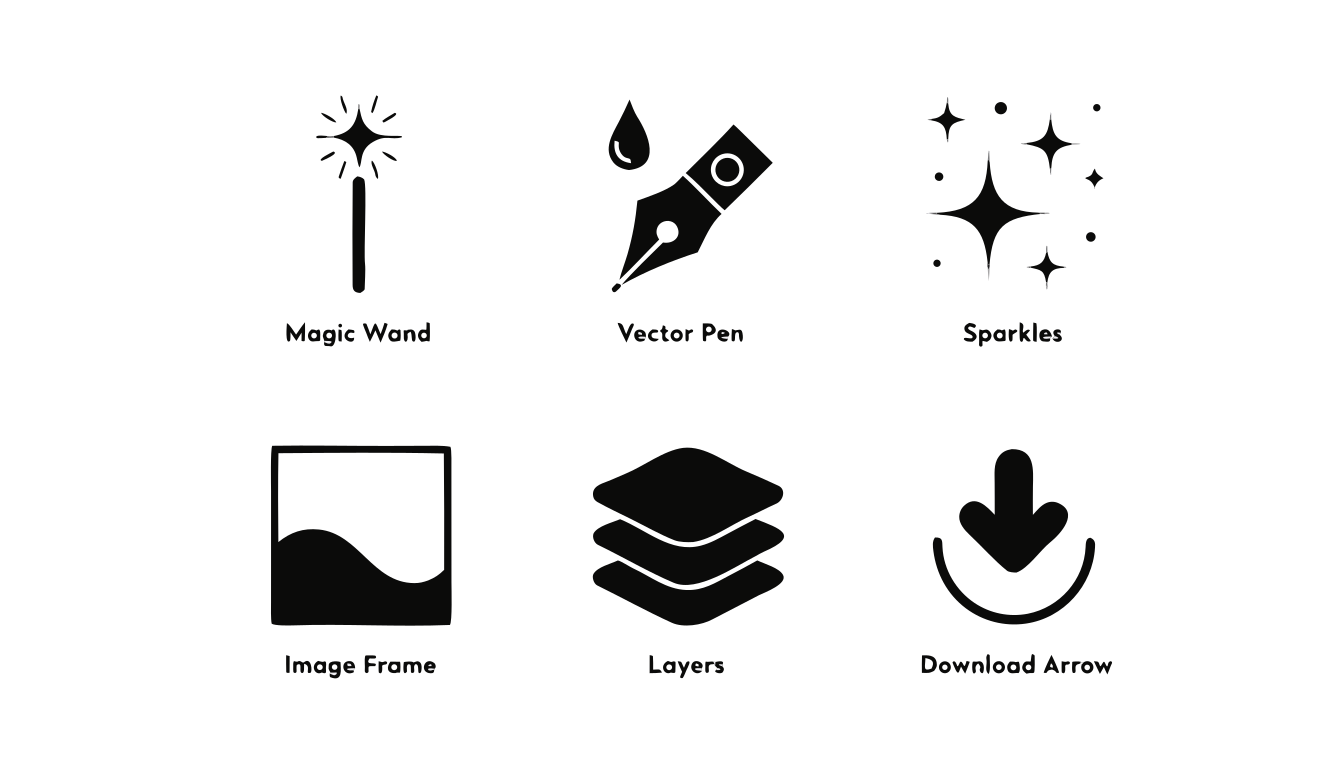
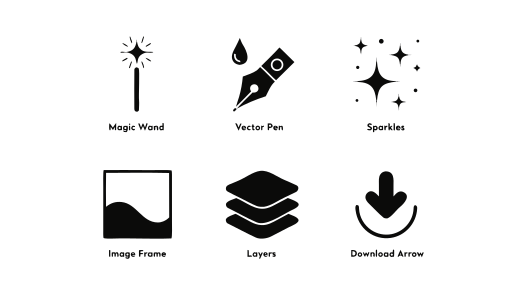
The line-icon sheet above contains 159 paths and weighs 52,433 bytes. It is an existing VectorArtGen example: six black icons, short labels, and a white background. There are no embedded photographs. We used it to test how much an SVG optimizer could save before the rendered image changed.
The answer depended on the settings. A small cleanup saved 2,245 bytes with identical pixels in our tests. The default optimization saved 24,474 bytes, but the pixels were no longer identical.
If your file came from a JPG to SVG conversion, this is a useful distinction. Some of its size may be unnecessary markup; some may be the shapes that tracing created. Removing each has a different effect.
Two exports from the same file
We ran this test on September 14, 2026, using SVGO 4.0.0. Both exports started from the same original; the second did not build on the first.
- Original: 52,433 bytes, 159 paths.
- Markup cleanup: 50,188 bytes, 159 paths. A 4.28% reduction.
- Default preset: 27,959 bytes, 95 paths. A 46.68% reduction.
These are uncompressed file sizes, not network transfer sizes after gzip or Brotli.
The first export used only cleanupAttrs and convertColors, with compact output. Every path's d attribute stayed unchanged. The savings came from how the file was written, including shorter color values, rather than fewer shapes.
Here is the complete configuration for that pass:
export default {
  plugins: ['cleanupAttrs', 'convertColors'],
  js2svg: { pretty: false },
};
The second export used SVGO's preset-default. That runs a broader set of transformations, including path optimization, grouping changes, and metadata removal. The default preset documentation lists the plugins. It is more than a whitespace cleanup.
Download the original SVG, the markup-only export, or the default export to inspect them yourself.
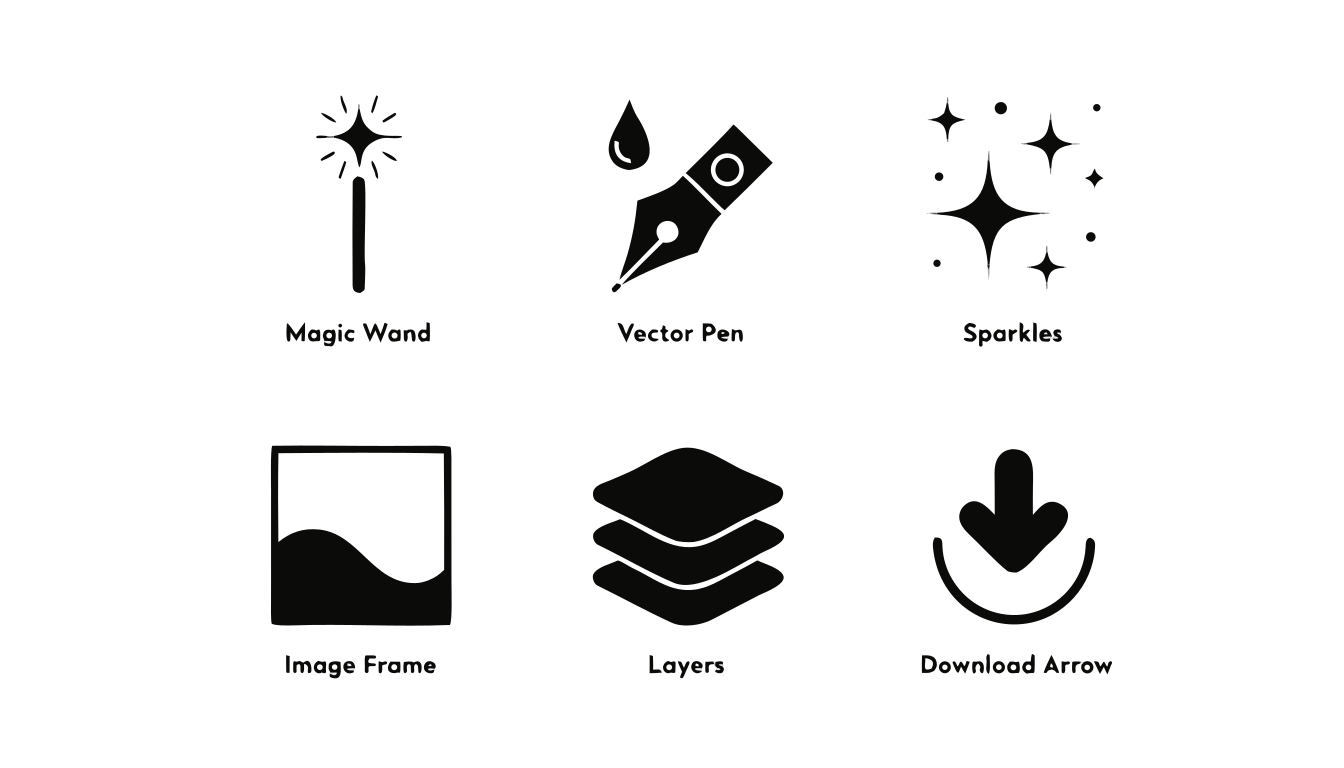
The smaller export looked the same. The pixel check disagreed.
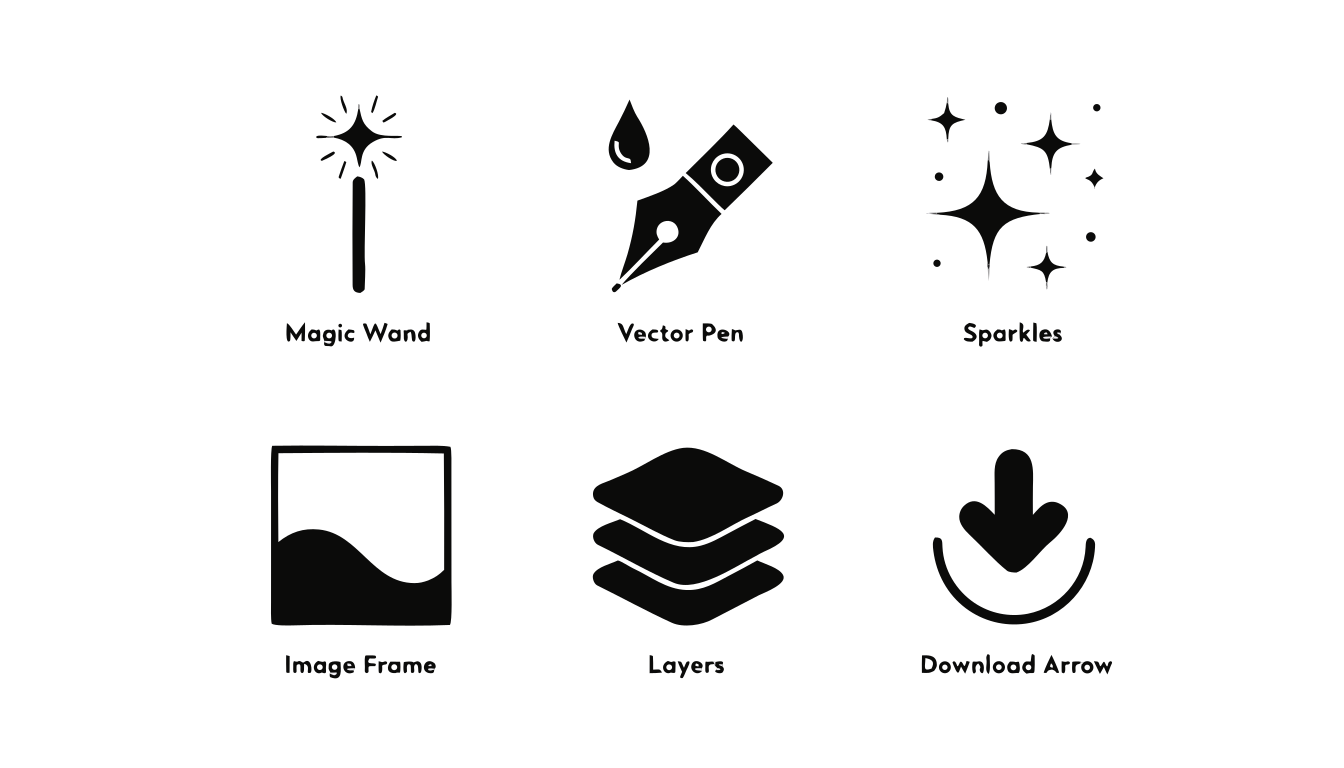
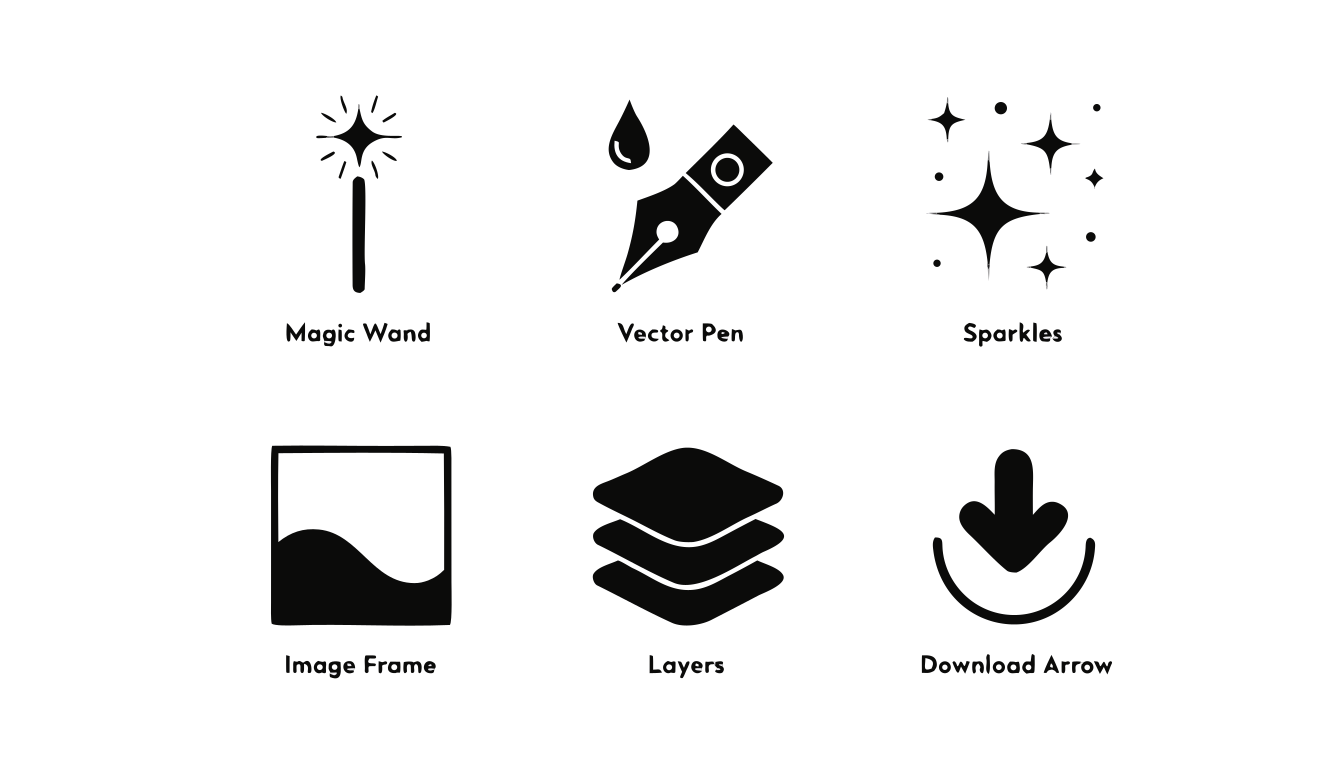
At the preview size below, the default export retained all six icons and their labels. We could not see an obvious missing shape in the side-by-side inspection.
Original, rendered at 512 pixels wide:
Default optimization, rendered at the same width:
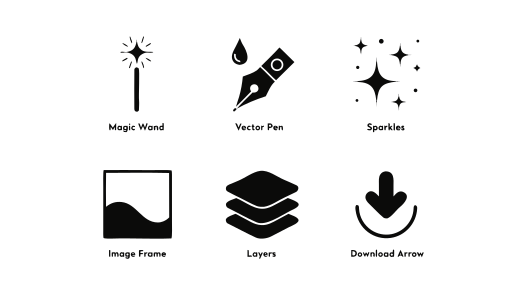
For a closer check, we rendered each SVG through Sharp 0.34.5 and its librsvg renderer, then compared the RGBA pixels with no tolerance. The markup-only export matched the original exactly at widths of 128, 512, and 1,600 pixels.
The default export produced 32, 207, and 891 differing pixels at those respective widths. At 512 pixels wide, the raster was 512 × 293, so 207 of 150,016 pixels differed—about 0.14%. A pixel counted as different if any of its four channels changed. That percentage describes the comparison; it is not a perceptual quality score.
This was one static file in one rendering setup. It does not establish identical output across browsers, print software, or every display size. The test results include the renderer versions and measurements.
For this icon sheet, we would consider the default export for a website after checking it in the intended layout. If exact preservation were required, the markup-only export has the stronger result in this test. Saving nearly half the bytes is useful, but calling both exports “lossless” would hide a real difference.
Why cleanup sometimes saves very little
The conservative pass left this file above 50 KB. Its path strings were untouched, and those strings account for much of the file. There was only so much to save by shortening attributes.
For a traced logo that remains too large, zoom into its edges. Are there small islands of color around an otherwise solid outline? Those may come from compression noise in the source. Try a cleaner input or fewer colors in the image vectorizer, then compare the letter openings and narrow gaps. A new trace can remove those fragments more effectively than compacting their coordinates.
The 159-to-95 drop in our default export also needs care when interpreting it. An optimizer can combine paths, so fewer path elements do not by themselves prove that it removed visual detail. The rendered comparison matters more than that count.
There is another case where path cleanup will disappoint: a file containing <image href="data:image/...">. Part of its size is raster data inside the SVG. You would need to resize or recompress that image to reduce its payload. Tracing a photograph can make the file larger. Our SVG versus JPG guide covers when keeping a raster image makes more sense.
Try the same comparison on your SVG
Save a copy before starting. With Node.js and npm installed, place the downloaded original and configuration file in a working folder. These commands reproduce the two SVG exports:
npx --yes svgo@4.0.0 --config markup.config.mjs -i original.svg -o markup.svg
npx --yes svgo@4.0.0 -i original.svg -o default.svg
SVGO supports a command-line interface; other ways to run it are described in its usage documentation. The commands above use an external optimizer. VectorArtGen's image converter creates the starting SVG; it does not expose these SVGO settings.
Open the resulting files where you actually plan to use them. For a header logo, check the mobile header as well as the large preview. For an inline SVG, exercise any CSS recoloring or animation that depends on IDs. Keep the viewBox, and check that gradients and masks still resolve. Preserve any attribution your asset requires if the optimization removes metadata.
In this test, the 4.28% export is the one we can back with identical pixels at all three tested sizes. The 46.68% export is a promising smaller alternative with measurable differences. Keep both until you have checked the tradeoff on your own page.